Arm and end effector frames
When you move an arm with the motion service, you move a frame from its current pose to a destination pose. That frame is called the end effector frame, also called the tool control point (TCP) or the manipulation control frame. The end effector frame’s location depends on the arm, the tool, and the task, and it can change partway through a job. This page explains the arm frame and the end effector frame, how the motion service resolves frames, and how you define and visualize them.
The arm frame
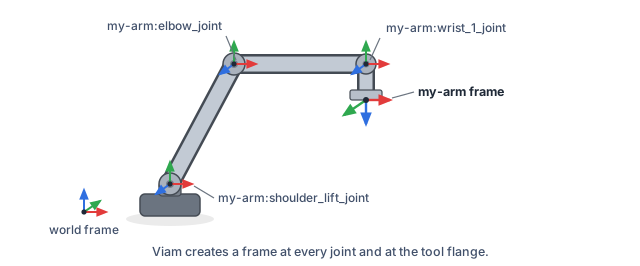
Every arm has a special built-in frame named after its component name. Configure an arm called
my-arm, and Viam creates a frame named my-arm at the arm’s tool flange, the
end of the kinematic chain where a tool mounts. The arm’s kinematics file (URDF or Viam JSON)
defines how that frame is attached to the arm.
Viam also creates a frame for each link and joint along the arm’s kinematic chain, named
my-arm:<name> after the kinematics file: link frames such as my-arm:forearm_link and
joint frames such as my-arm:elbow_joint. Parent a component to one of these frames to
mount it partway along the arm. For more information, see Parent to an intermediate arm link.
End effector frames
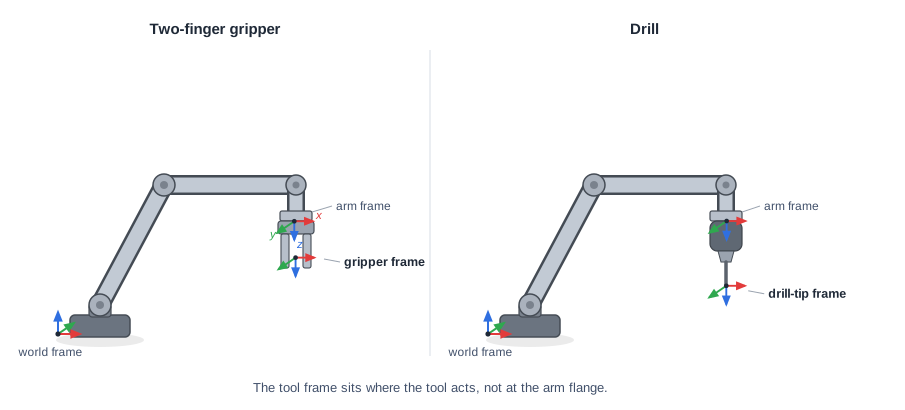
The built-in arm frame is enough when you want to move the arm without an attached gripper or end effector. For most tasks, you attach a gripper or a tool to the end of the arm, and then the location you want to control is where the tool acts, not where the arm flange is. An end effector frame marks that location. The end effector frame is a user-defined frame that is both hardware and task dependent. For a two-finger gripper, the end effector frame is typically between the fingertips, a short offset below the arm’s frame. For a drill, it is at the bit tip.
Define an end effector frame through a component frame
For end effector locations that are statically defined, such as a two-finger gripper or another tool that mounts rigidly to the arm’s flange, you define a static frame through the component’s frame attribute.
On the component’s configuration card, set a parent to attach to (usually the arm), a translation that offsets the component’s origin from the parent in millimeters, and an orientation that rotates its axes. Viam creates a frame named after the component, and uses it whenever you name that component.
Here is a gripper frame attribute from the Arm with gripper and wrist camera example, which is 120 mm past the flange:
{
  "parent": "my-arm",
  "translation": { "x": 0, "y": 0, "z": 120 },
  "orientation": {
    "type": "ov_degrees",
    "value": { "x": 0, "y": 0, "z": 1, "th": 0 }
  }
}
Moving an arm with the motion service
With the arm and component frames defined, you can move any of them to a pose. The
motion service moves a named frame to a destination pose. Its Move method takes a
frame name and a target pose, and the planner finds a collision-free path that brings that
frame to the pose:
from viam.proto.common import Pose, PoseInFrame

# A target pose in the world frame, tool pointing down
target_pose = PoseInFrame(
    reference_frame="world",
    pose=Pose(x=400, y=0, z=300, o_x=0, o_y=0, o_z=-1, theta=0),
)

# Move the my-arm frame to the target pose
await motion_service.move(
    component_name="my-arm",
    destination=target_pose,
)
You pass two parameters to Move: a string component_name and a destination, a
PoseInFrame that pairs the target pose with the reference frame it is expressed in
(here, world).
Pass a component name, and the motion service uses the frame defined for that component.
For an arm, that frame is the my-arm frame at the tool flange, shown above. For a gripper
or another tool, it is the static frame you defined through its frame attribute, at the
point where the tool acts rather than at the flange. You can also pass a frame name directly,
such as one you add in code with a WorldState transform.
Why the frame you name matters
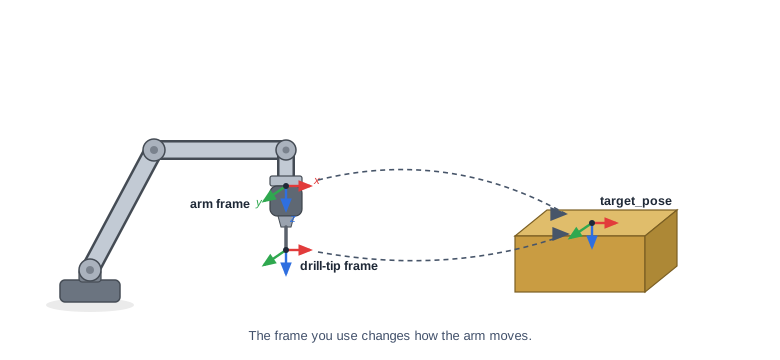
A Move call that uses the arm frame produces different motion than one that
uses the end-effector frame. The arm’s frame is at the flange and the end effector
frame at the bit tip, so the same target_pose produces different motions.
In the example below, the target pose is defined on the face of a box. If you use
the drill-tip frame, the bit moves to the box face. If you use the arm frame, the
drill drives into the box, because the planner tries to move the arm frame to the
target pose.
Define an end effector frame in code
The frame attribute described above works well when the end effector frame is static.
When a task needs the end effector frame to change, or when defining it in code suits
the job better, add a new frame to the frame system with a WorldState transform.
One example is when your end effector grasps an object. Before pickup, the end effector frame is located with the gripper. After pickup, the end effector frame may need to move to the part for an assembly step:
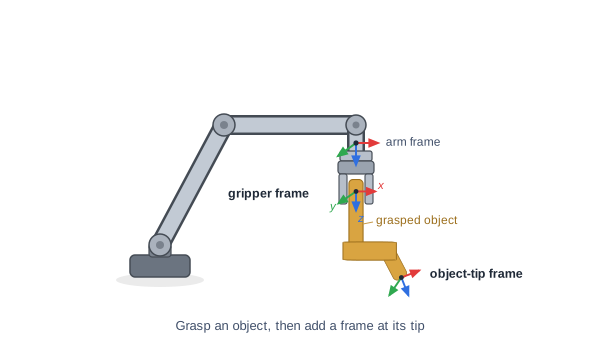
The WorldState holds obstacles and frames that the motion service uses to plan collision-free motion. Move can consume a world_state to expand the obstacles and frames it plans around. To create a new frame, the steps differ slightly by language, but the approach is
the same:
- Create a WorldState Object
- Define the translation and orientation from the parent frame to the
new frame. In Python, this is a
PoseInFrame; in Go, it is the pose you pass toNewLinkInFrame. In the example above, the parent frame is the gripper ("my-gripper"). - Build a transform from that pose and add it to a
WorldState. - Call move using the
WorldStateobject
from viam.proto.common import (
    Transform, PoseInFrame, Pose, WorldState
)

# A frame named "object-tip", 100 mm beyond the gripper, attached to it.
object_tip = Transform(
    reference_frame="object-tip",  # the name of the new frame
    pose_in_observer_frame=PoseInFrame(
        reference_frame="my-gripper",  # the parent: the object moves with the gripper
        # 70 mm across and 130 mm down from the gripper, turned so z points along the bent object.
        pose=Pose(x=70, y=0, z=130, o_x=1, o_y=0, o_z=0, theta=90),
    ),
)

world_state = WorldState(transforms=[object_tip])

# Move can now place "object-tip" at the destination.
await motion_service.move(
    component_name="object-tip",
    destination=target_pose,
    world_state=world_state,
)
// A frame named "object-tip", 100 mm beyond the gripper, attached to it.
objectTipLink := referenceframe.NewLinkInFrame(
    "my-gripper", // the parent: the object moves with the gripper
    // 70 mm across and 130 mm down from the gripper, turned so z points along the bent object.
    spatialmath.NewPose(
        r3.Vector{X: 70, Y: 0, Z: 130},
        &spatialmath.OrientationVectorDegrees{OX: 1, OY: 0, OZ: 0, Theta: 90},
    ),
    "object-tip", // the name of the new frame
    nil,          // optional collision geometry; nil means a pure coordinate frame
)

worldState, err := referenceframe.NewWorldState(
    nil, []*referenceframe.LinkInFrame{objectTipLink})
if err != nil {
    logger.Fatal(err)
}

// Move can now place "object-tip" at the destination.
_, err = motionService.Move(ctx, motion.MoveReq{
    ComponentName: "object-tip",
    Destination:   targetPose, // your goal *referenceframe.PoseInFrame
    WorldState:    worldState,
})
The motion service keeps its own copy of the WorldState with any frames and collision geometries created by the machine’s components and services. The WorldState you pass to Move is not added to it, so later calls must pass the WorldState again for the service to see those new frames or collisions.
Attach a geometry to a transform
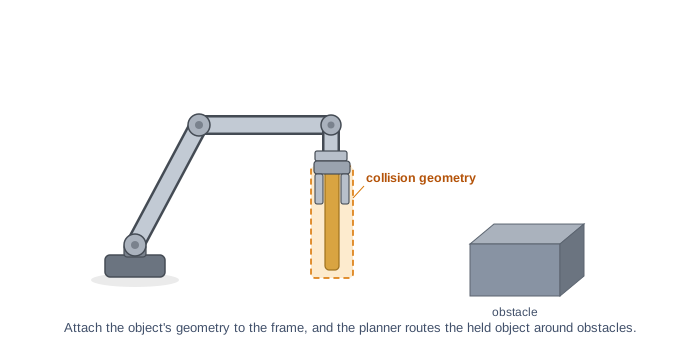
A transform can also carry a collision geometry, a 3D shape the planner avoids while it tries to find collision-free motion to the destination. A frame marks a location; a geometry gives it size. For a grasped object, it can be helpful to attach geometry so the planner routes the grasped object around obstacles. Give the transform a box, sphere, capsule, or mesh defined in the frame’s own coordinates:
from viam.proto.common import (
    Transform, PoseInFrame, Pose, Geometry, RectangularPrism, Vector3,
)

object_tip = Transform(
    reference_frame="object-tip",
    pose_in_observer_frame=PoseInFrame(
        reference_frame="my-gripper",
        pose=Pose(x=70, y=0, z=130, o_x=1, o_y=0, o_z=0, theta=90),
    ),
    physical_object=Geometry(  # the collision geometry for this frame
        center=Pose(x=0, y=0, z=-50, o_x=0, o_y=0, o_z=1, theta=0),  # centered on the grasped object
        box=RectangularPrism(dims_mm=Vector3(x=30, y=30, z=100)),
        label="object-tip",
    ),
)
// Make a new 30 x 30 x 100 mm box covering the grasped object.
geometry, err := spatialmath.NewBox(
    spatialmath.NewPoseFromPoint(r3.Vector{X: 0, Y: 0, Z: -50}), // centered on the grasped object
    r3.Vector{X: 30, Y: 30, Z: 100},                             // full dimensions in mm
    "object-tip",
)
if err != nil {
    logger.Fatal(err)
}

objectTipLink := referenceframe.NewLinkInFrame(
    "my-gripper",
    spatialmath.NewPose(
        r3.Vector{X: 70, Y: 0, Z: 130},
        &spatialmath.OrientationVectorDegrees{OX: 1, OY: 0, OZ: 0, Theta: 90},
    ),
    "object-tip",
    geometry, // the planner avoids collisions with this geometry
)
WorldState versus the world state store service
The names are similar, but WorldState and the world state store service are
different things, and only one affects a Move call.
WorldStateis the argument you pass to a singleMovecall. The obstacles and transforms in it exist only for that request: the planner uses them to plan this motion, and they are gone when the call returns. The transform in the previous section is aWorldStatetransform, so it shapes the plan.- The world state store service is a separate service that holds transforms for client-side visualization in the 3D scene.
To change where the arm goes, put the transform in the WorldState you pass to
Move, as shown above. To render a custom visual that leaves planning unchanged,
publish it to the world state store service instead.
Visualize the end effector frame
A static frame stays fixed relative to its parent. Static frames render in the 3D scene
automatically. Open the 3D SCENE tab on
your machine’s page, and the arm’s built-in end effector frame and any frame
attributes you configured appear as coordinate axes at their computed poses, the
same axes drawn in the diagrams on this page.
A frame you add in code with a WorldState transform lasts only for that Move
call, so it stays out of the 3D scene by default. To draw a code-defined frame in
the 3D scene, publish it through a world state store
service. A module that implements this service holds your transforms and streams
them to the scene, which renders a frame with no geometry as a set of coordinate axes
alongside the static frames.
What’s next
- Frame system overview: configure parent, translation, orientation, and geometry for every component.
- Arm with gripper and wrist camera: a worked end effector configuration.
- Move an arm to a pose: target a frame with the motion service.
- Attach and detach geometries: carry a grasped object’s geometry with the end effector.
Was this page helpful?
Glad to hear it! If you have any other feedback please let us know:
We're sorry about that. To help us improve, please tell us what we can do better:
Thank you!